
Software installation
Install AIXpressor Software from a USB Stick
Important: Use this procedure only when Jünger Audio Support explicitly instructs you to reinstall or replace the software on an AIXpressor system.
This article describes how to install AIXpressor software from a bootable USB stick. The procedure is intended for service and recovery situations and should not be used during normal operation.
Before You Start
Make sure that you have:
- The software ISO file provided or approved by Jünger Audio Support
- A USB stick suitable for creating bootable installation media
- A USB keyboard
- Physical access to the front and rear of the AIXpressor
- Access to the AIXpressor power supply switch
Warning: Creating a bootable USB stick erases the contents of the USB stick. Back up any files from the USB stick before continuing.
Create a Bootable USB Stick
Create a bootable USB stick from the ISO file before connecting it to the AIXpressor.
You can use a tool such as balenaEtcher to write the ISO image to the USB stick.
General procedure:
- Insert the USB stick into your computer.
- Open the USB imaging tool.
- Select the ISO file provided by Jünger Audio Support.
- Select the USB stick as the target device.
- Write or flash the ISO image to the USB stick.
- Wait until the process has completed.
- Eject the USB stick safely.
Note: Do not copy the ISO file to the USB stick as a normal file. The ISO image must be written to the USB stick as bootable installation media.
Connect the USB Stick and Keyboard
- Connect the bootable USB stick to a USB connector on the rear panel of the AIXpressor.
- Connect a USB keyboard to the front USB connector of the AIXpressor.
Start the AIXpressor in USB Boot Mode
- Make sure the AIXpressor power supply is switched off.
- Press and hold the red INIT / RESET button on the rear panel.
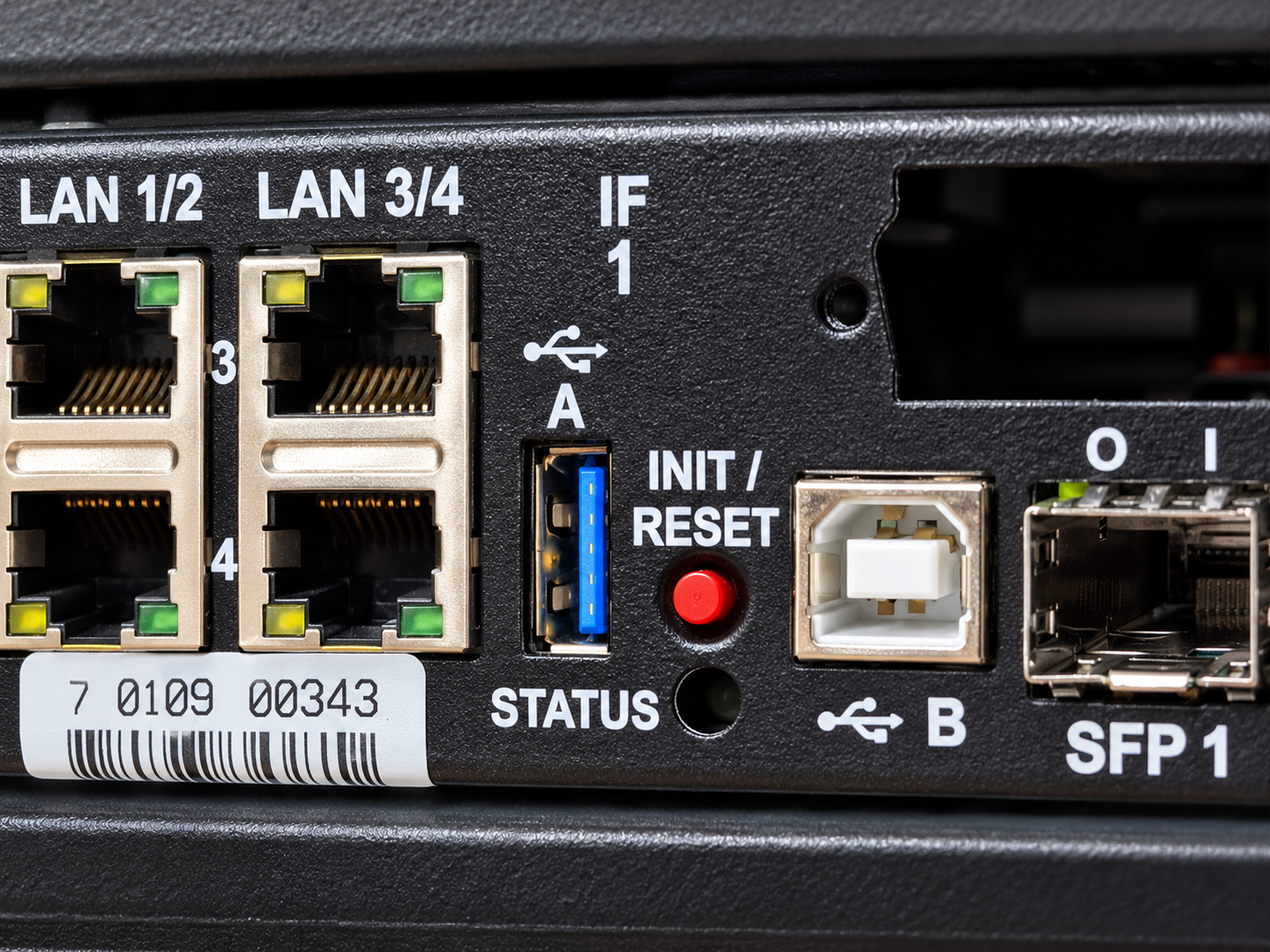
- While holding the red button, switch on the AIXpressor power supply.
- Keep holding the red button until the rear status LED starts flashing blue.
- Release the red button.
The AIXpressor now starts from the USB installation media.
Start the Installation
After the AIXpressor has started from the USB stick, the installation menu appears on the front display.
- Use the keyboard to select Install.
- Press Enter.
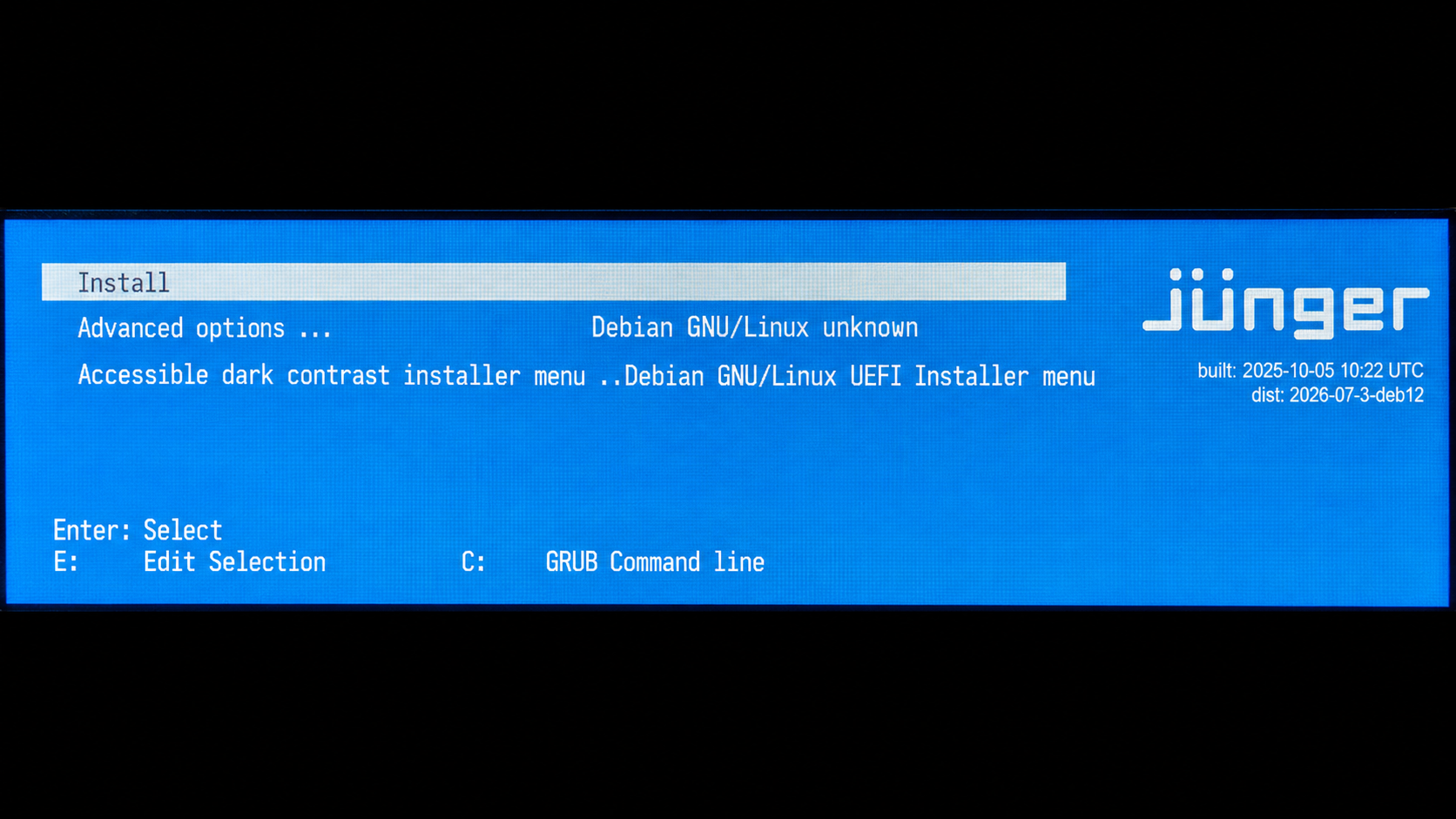
The installation process starts. Follow the instructions shown on the front display.
Enter the Host Name
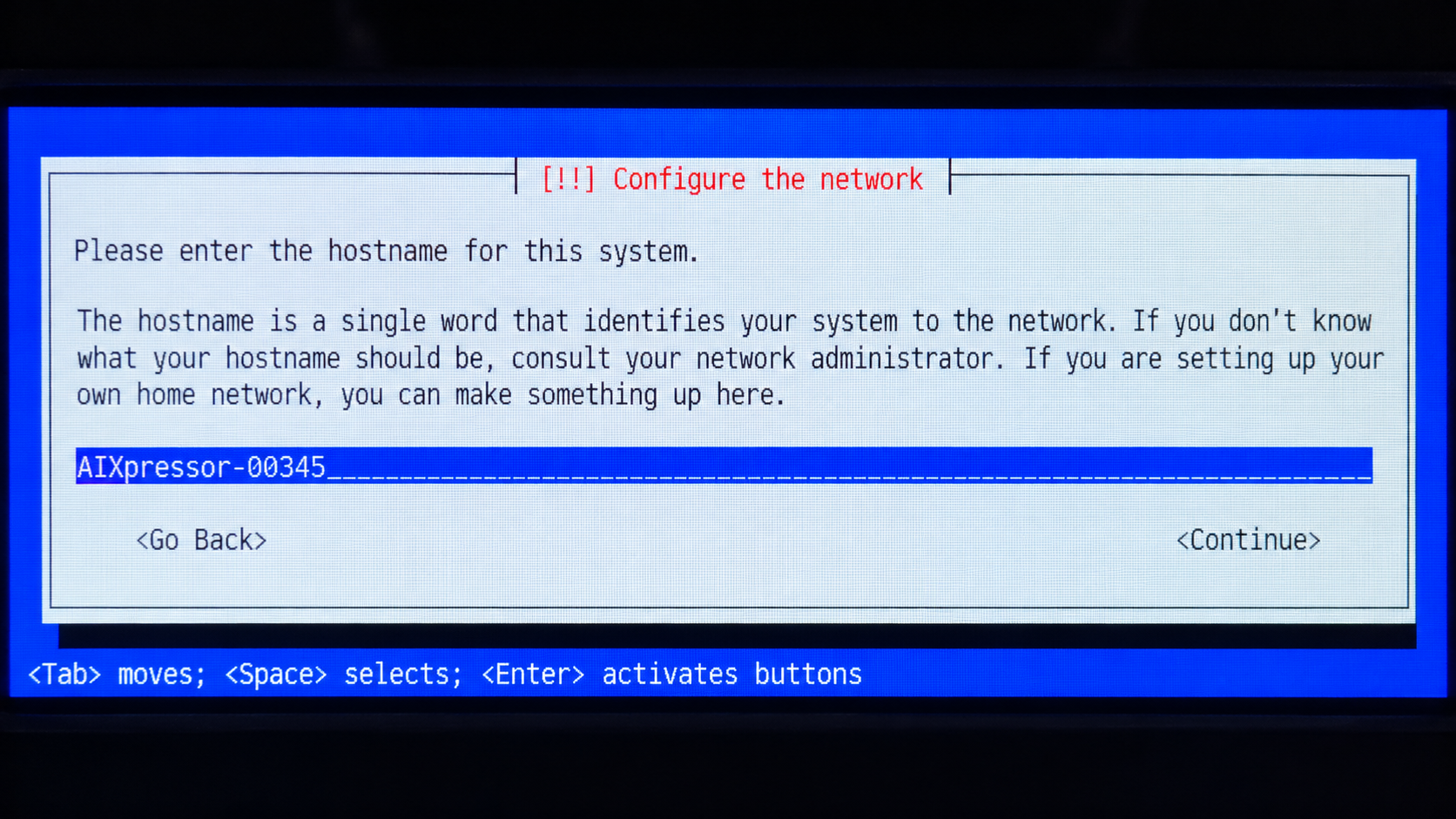
During installation, the system asks for a host name.
Enter a host name for the AIXpressor. The host name should identify the system in the network.
Recommended format:
AIXpressor-<serial number suffix>
Example:
AIXpressor-00119
You may also choose a different host name if required by the installation or network environment.
Complete the Installation
Continue through the installation steps shown on the front display.
When the installation is complete, the display shows the final installation screen and asks you to continue to reboot.
- Remove the USB installation media.
- Select Continue.
- Press Enter to reboot the system.
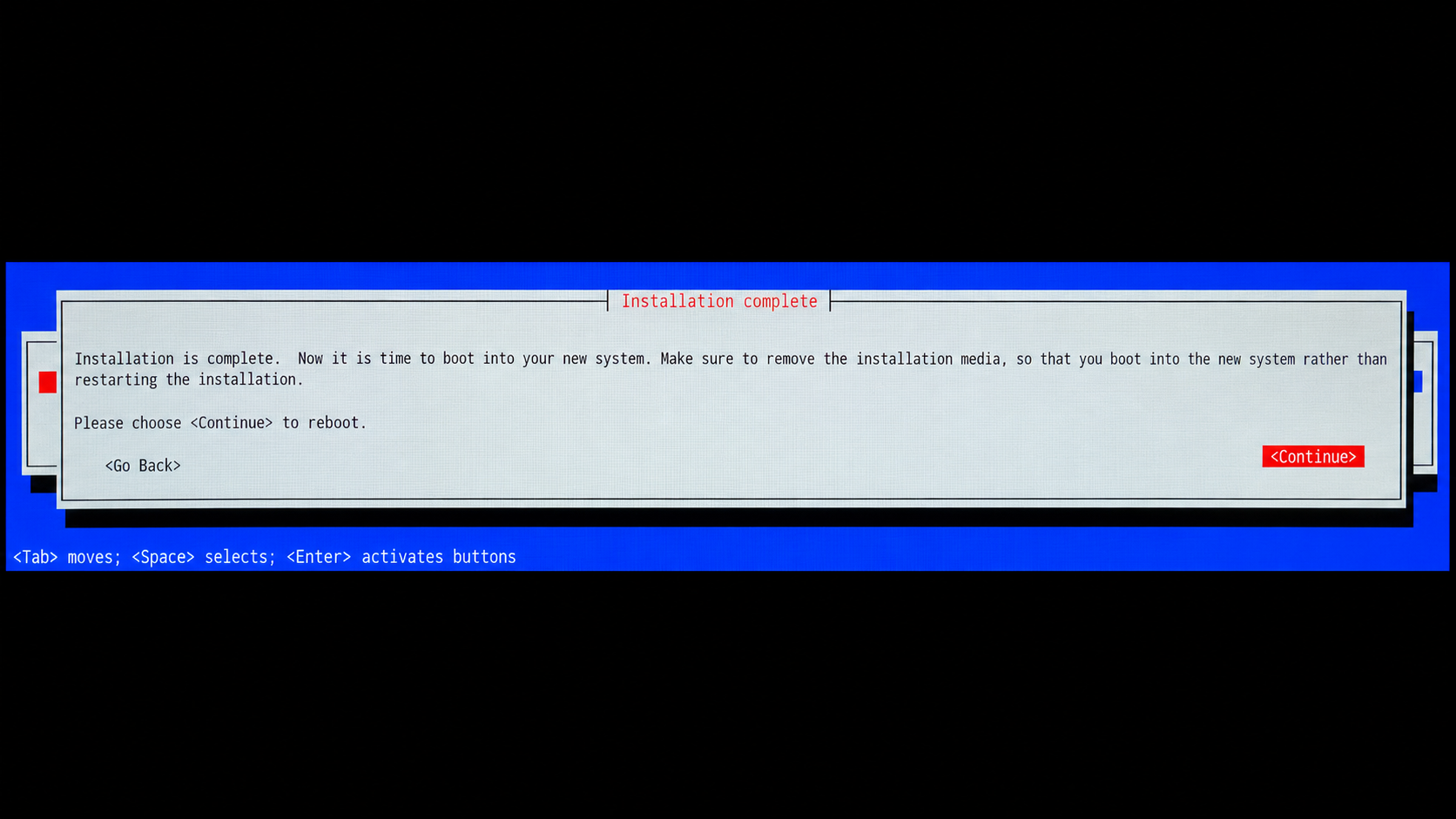
Warning: Do not switch off the AIXpressor before selecting Continue and starting the final reboot from the installer.
Power Cycle the AIXpressor
After the final reboot has been started, perform a power cycle to make sure the AIXpressor leaves USB boot mode and starts normally from the internal system drive.
- Wait until the reboot has started.
- Switch off the AIXpressor power supply.
- Wait a few seconds.
- Make sure the USB installation media has been removed.
- Switch on the AIXpressor power supply again.
- Do not press the red INIT / RESET button during this normal startup.
Important: The power cycle is required after installation. If the system is not power-cycled, it may start in USB boot mode again.
After Installation
After the AIXpressor has restarted normally:
- Open the flexAI Web UI from a computer in the same network.
- Log in with the initial credentials or the credentials provided by Support.
- Check the network configuration.
- Create or restore the required system configuration.
- Install or update the license if required.
- Create a backup after the initial setup has been completed.
Detailed information about the first login and basic configuration can be found in the Connect and Basic Setup article.