
Basic Setup
This article describes the first steps after installing or deploying flexAI. It explains how to open the Web UI, log in for the first time, change the admin password, check the basic system configuration, and create a license request.
Use this article as the starting point before configuring audio interfaces, routing, Processors, Modules, or production workflows.
Prerequisites
Before you continue, make sure that:
- The flexAI system has been installed or deployed.
- The system is powered on and running.
- Your computer has network access to the flexAI system.
- You know the IP address or host name of the system.
- A supported web browser is available on your computer.
Detailed prerequisite information can be found in Prerequisites.
Open the Web UI
Open a web browser and enter the IP address or host name of the flexAI system.
Example:
http://<IP address>
or, depending on your system configuration:
https://<IP address>
If the Web UI does not open, check the network connection between your computer and the flexAI system. Also verify the IP address, subnet, gateway, and firewall settings.
Log In
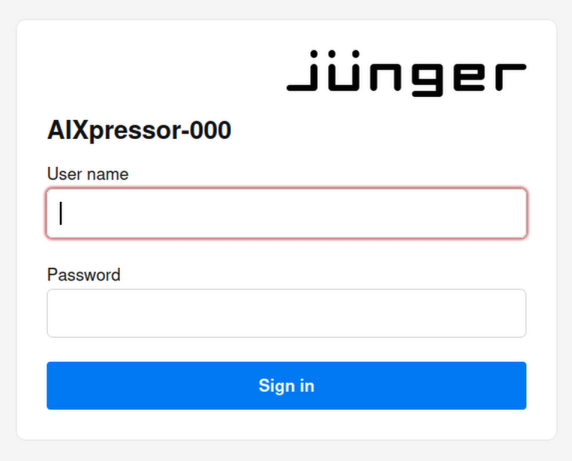
When the login page appears, enter the initial login credentials.
| Field | Value |
|---|---|
| User name | admin |
| Password | admin |
Select Sign in to open the Web UI.
Change the Admin Password
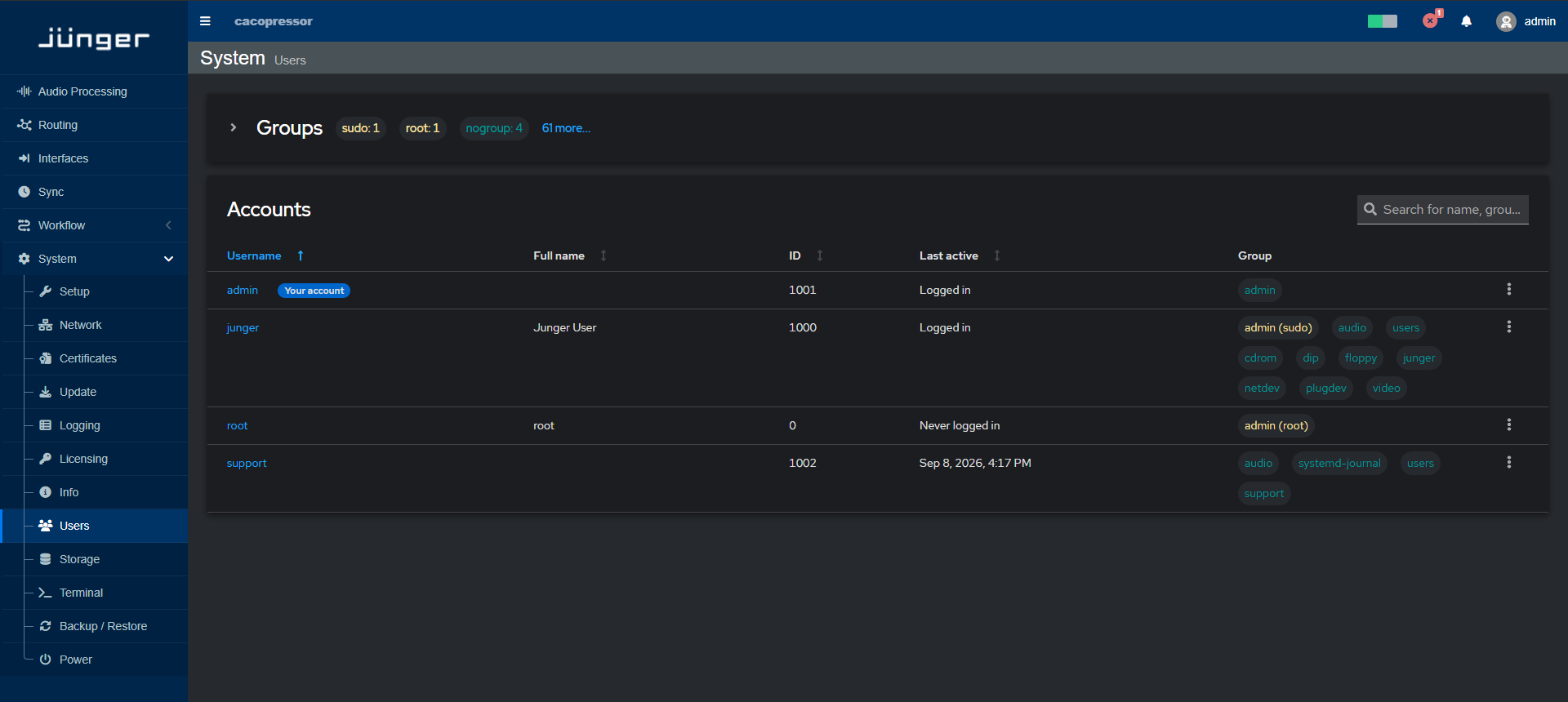
After the first login, the system may show a warning that the default admin password must be changed. Change the password before continuing with the basic setup.
To change the admin password:
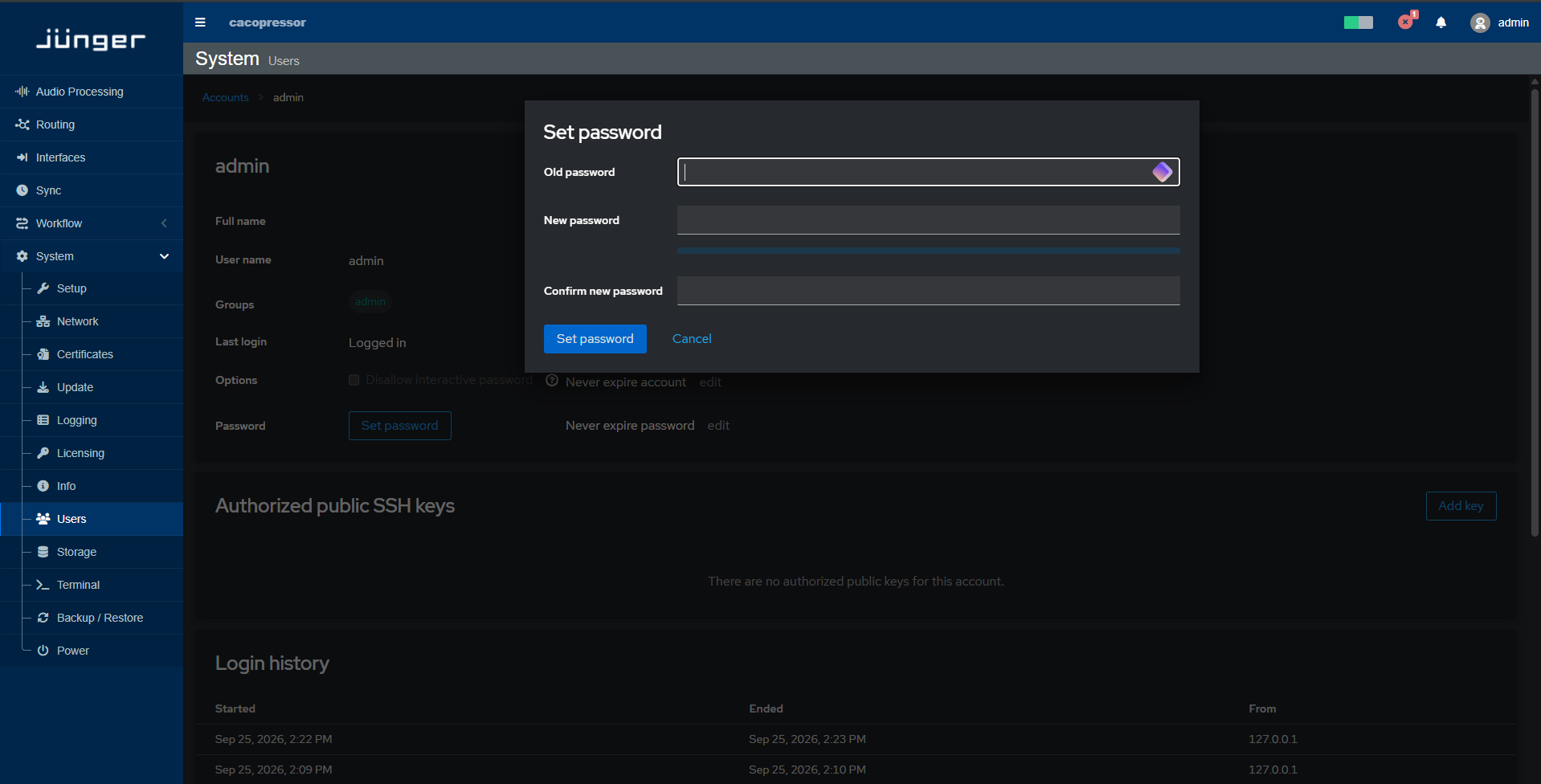
Note - Password must contain at least 10 characters, including at least: - one upper case letter - one lower case letter - one number - one special character
Detailed user management information can be found in Users.
Basic Setup Checklist
After logging in and changing the admin password, check the basic system configuration before using the system in production.
Recommended first setup steps:
- Verify or configure the network settings.
- Check the system name or host name.
- Check date, time, and time synchronization settings.
- Check the installed software version.
- Create a license request from the Licensing page.
- Create a system backup after the initial setup.
These steps help ensure that the system is reachable, identifiable, correctly timed, ready for licensing, and recoverable after initial configuration.
Configure Network Settings
Open the network configuration page and verify the current network settings.
Check the following items:
- Management network interface
- IP address
- Subnet mask or prefix
- Gateway
- DNS settings
- Host name or system name
- Media or AoIP network interfaces, if used
- NTP settings, if time synchronization is required over the network
- PTP settings, if the system is used in an AoIP, AES67, ST 2110, or other PTP-based environment
Make sure the management interface is reachable from the computer used for administration.
Detailed network configuration instructions can be found in Network.
Check System Name and Time Settings
Open the system setup page and verify the basic system information.
Check the following items:
- Host name
- System location, if used in the installation
- System contact, if used in the installation
- Current date
- Current time
The host name helps identify the system in the network and in support or monitoring workflows. Correct date and time settings are important for logs, diagnostics, support cases, and system operation.
Detailed setup information can be found in Setup.
Check Software Version and System Status
Open the Info page and check the current system status and installed software version.
Check the following items:
- Overall system status
- Hardware status
- Software status
- Installed software versions
- System load, if relevant for the installation
The software version is useful when comparing the system state with the manual or when contacting support.
Detailed status and version information can be found in Info.
Create a License Request
Open the Licensing page to create a license request.
To create a license request:
- Open System > Licensing.
- Select Download License Context File.
- Save the license context file to your computer.
- Send the file to the responsible activation or support contact.
- After receiving the license update file, return to the Licensing page.
- Select Upload License Update File to install or update the licenses.
Detailed licensing instructions can be found in Licensing.
Create a Backup
After completing the initial setup, create a system backup.
A backup after the first configuration helps you restore the system to a known working state if settings need to be recovered later.
Before creating the backup, make sure that:
- Network configuration has been completed.
- The admin password has been changed.
- The host name has been checked.
- Date and time settings have been checked.
- The license request has been created or the license update file has been installed.
Detailed backup and restore instructions can be found in Backup / Restore.
Next Steps
After completing the basic setup, continue with the configuration required for your installation.
Recommended next steps:
- Configure audio and media interfaces: Interfaces
- Configure Audio over IP settings, if used: Audio over IP - Setup
- Configure synchronization and clock settings: Sync
- Configure routing connections and Routing Collections: Routing
- Create or verify Processors: Audio Processing - Processors
- Create another backup after the system is fully configured: Backup / Restore