
Routing
The routing view is organized as a list-based connection system. Sources are shown on the left, destinations are shown on the right, and the connections between them are created as rows in the center.
Select any source on the left-hand side and a free destination on the right-hand side.
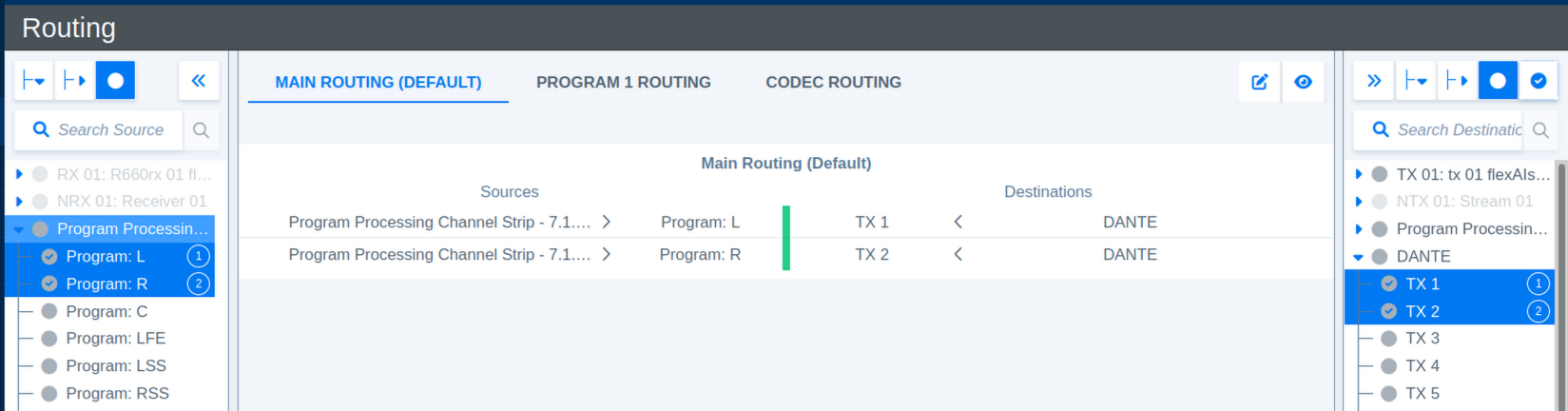
To connect the selected routing click on Link (New) at the bottom of the center section.

Any source can be used for routing with no limitations, destinations can only be used once. Connections will be established in the order of the ascending selection. This order is marked with ascending numbers on each selected source and destination.
Several shortcuts are available for managing routings:
- Holding CTRL while selecting sources or destinations will add them to the selection.
- Holding SHIFT enables selecting multiple adjacent sources or destination in a selection.
- Keep the mouse cursor steady over one of the icons to see a short description of its function.
After selecting a connection multiple tools are available for modifying sources, destinations and other fuctionality.
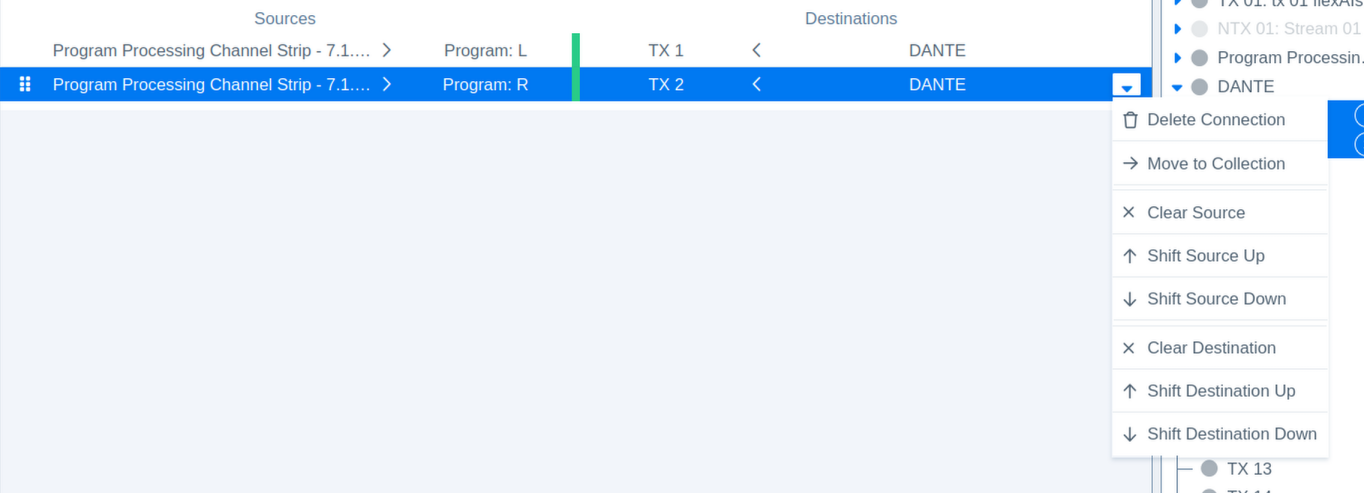
Routings can be managed in separate Routing Collections.
Each Routing Collection can hold its own Presets.