
Update
Select Update from the System menu to manage software updates and installed applications.
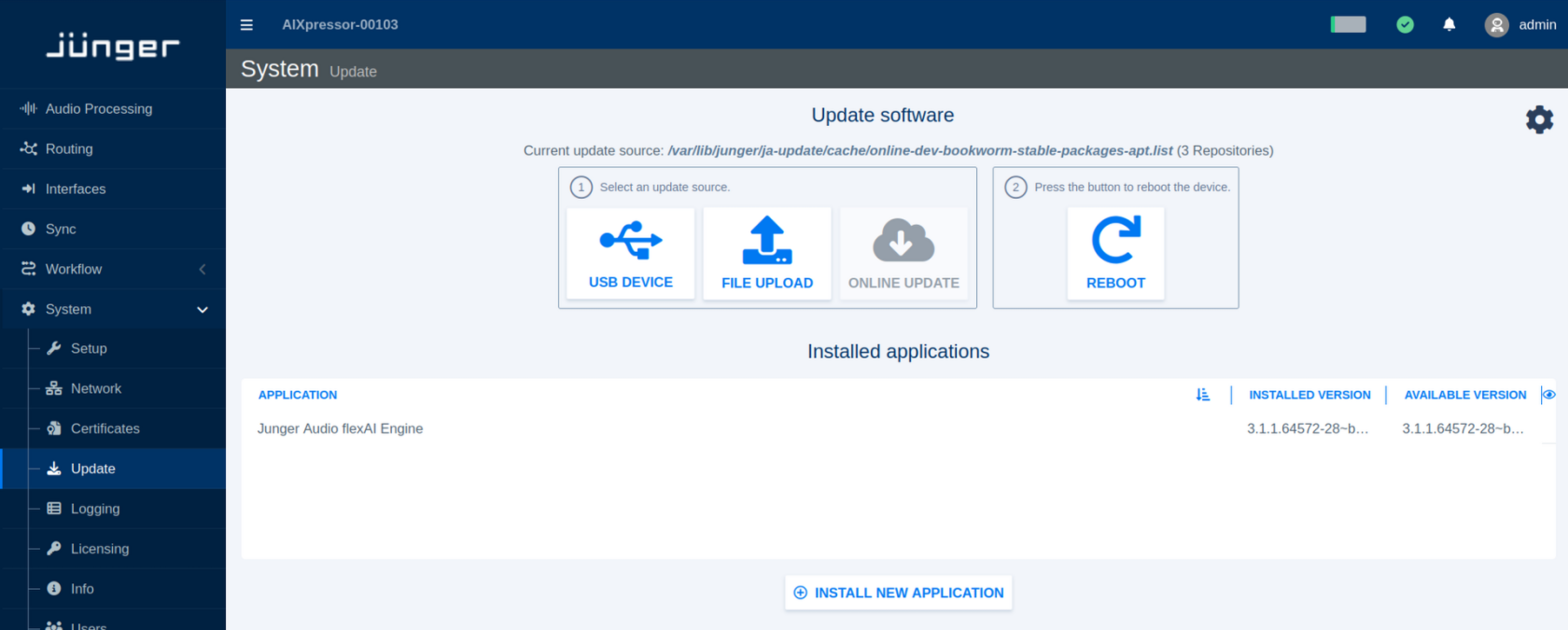
By default, the Update page provides a simplified workflow for updating the flexAI system. For installations that require more detailed package management, an Advanced View is also available.
Updating the System
In the standard view, first select the source from which the software update should be loaded:
-
USB Device – use an update available on a connected USB storage device.
-
File Upload – upload an update file from the computer running the web browser.
-
Online Update – retrieve an update from the configured online update source, if available.
After selecting the appropriate update source, follow the instructions shown on the page. The system can then be rebooted using Reboot as part of the update procedure.
The Installed applications section lists the applications currently installed on the flexAI system together with their installed and, where available, newer software versions.
Use Install New Application to add an application that is not currently installed.
Update Settings
Click the settings icon in the upper-right corner of the Update page to open the update settings.
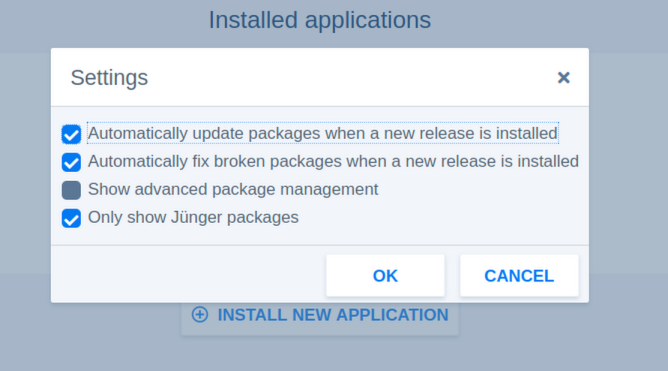
The following options are available:
-
Automatically update packages when a new release is installed – updates installed packages automatically when installing a new software release.
-
Automatically fix broken packages when a new release is installed – attempts to repair package inconsistencies as part of a release installation.
-
Show advanced package management – enables the Advanced View described below.
-
Only show Jünger packages – limits the displayed package list to Jünger Audio packages.
For normal operation, the simplified update view is generally sufficient. Enable advanced package management when individual packages need to be inspected or managed separately.
Advanced View
When Show advanced package management is enabled, the Update page provides direct access to the individual software packages available from the configured update source.
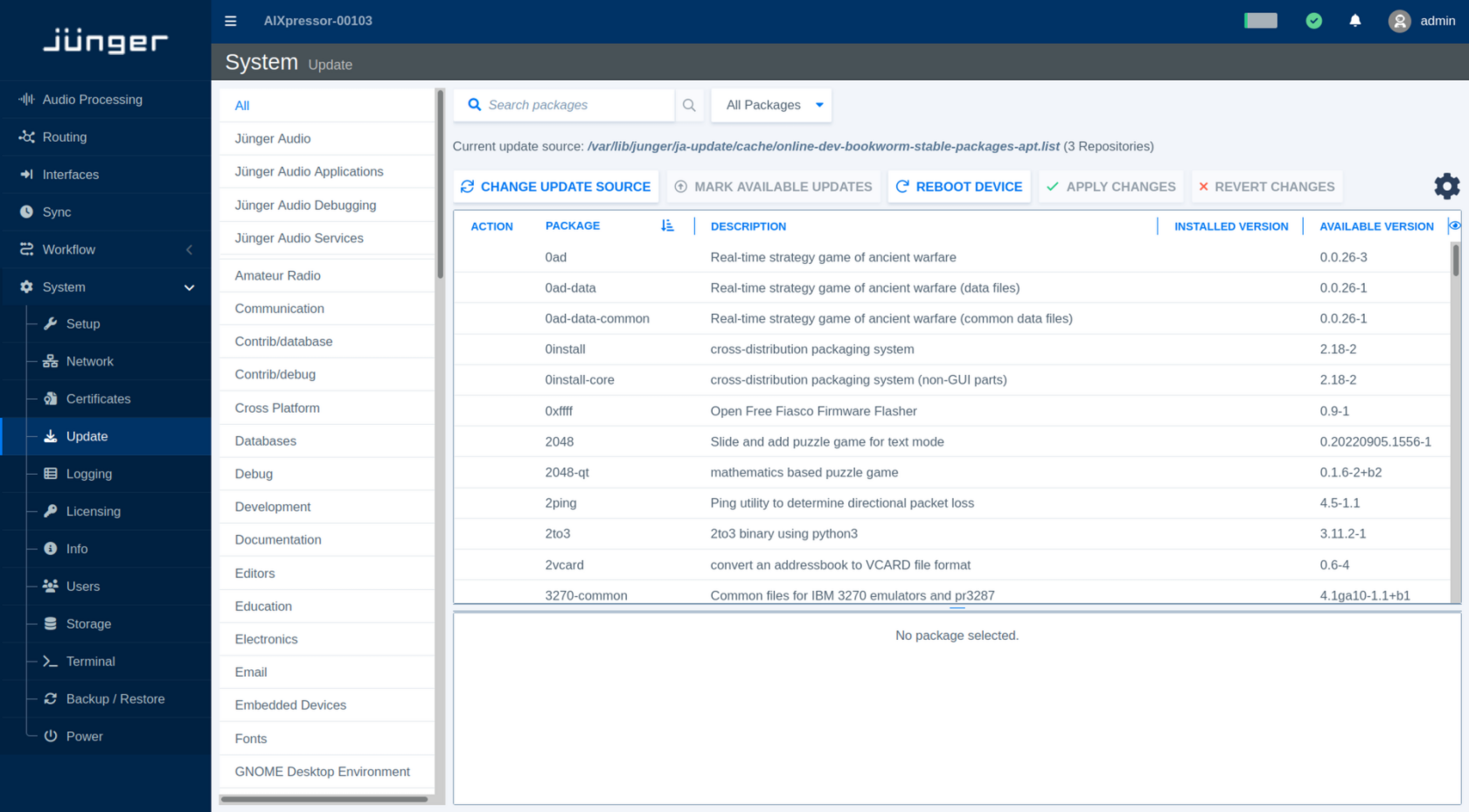
Use the category list, package search field, and package filter to locate specific packages. The package table shows information such as the Package name, Description, Installed Version, and Available Version.
The toolbar provides the following package management functions:
-
Change Update Source – selects or changes the source from which package information and updates are obtained.
-
Mark Available Updates – marks packages for which newer versions are available.
-
Apply Changes – applies the currently selected package changes.
-
Revert Changes – clears changes that have been selected but not yet applied.
-
Reboot Device – restarts the flexAI system when required after an update or package change.
Selecting a package provides additional information and available actions in the lower part of the page.
The Advanced View is intended for installations where individual package management is required. For regular flexAI software updates, use the standard update workflow whenever possible.